
How to Use Store CreditUpdated 2 months ago
Store credit is tied to the email address it was issued to. To use it, make sure you're logged into your Gardenary account with that same email at checkout — it won't apply automatically if you check out as a guest or under a different account.
Step 1: Check your balance (optional)
Want to confirm how much credit you have before you shop?
- Click the account icon in the top navigation of the shop.
- Log in with the email address the credit was issued to.
- Once logged in, your balance appears at the top of the page, next to your profile avatar.
Step 2: Add items to your cart
Shop as you normally would. There's no code to enter — your store credit balance is tied to your account and will be available at checkout automatically.
Step 3: Apply store credit at checkout
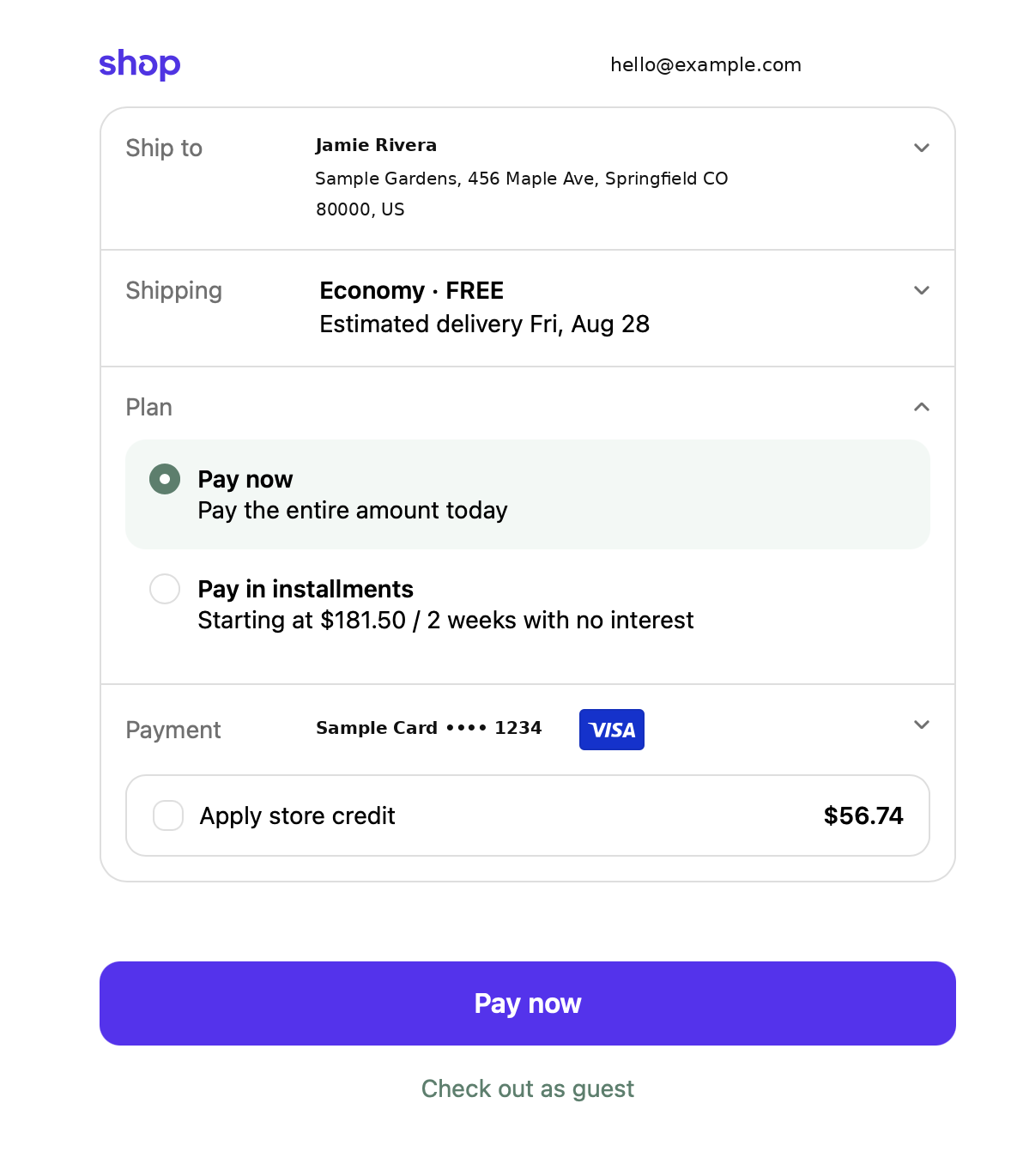
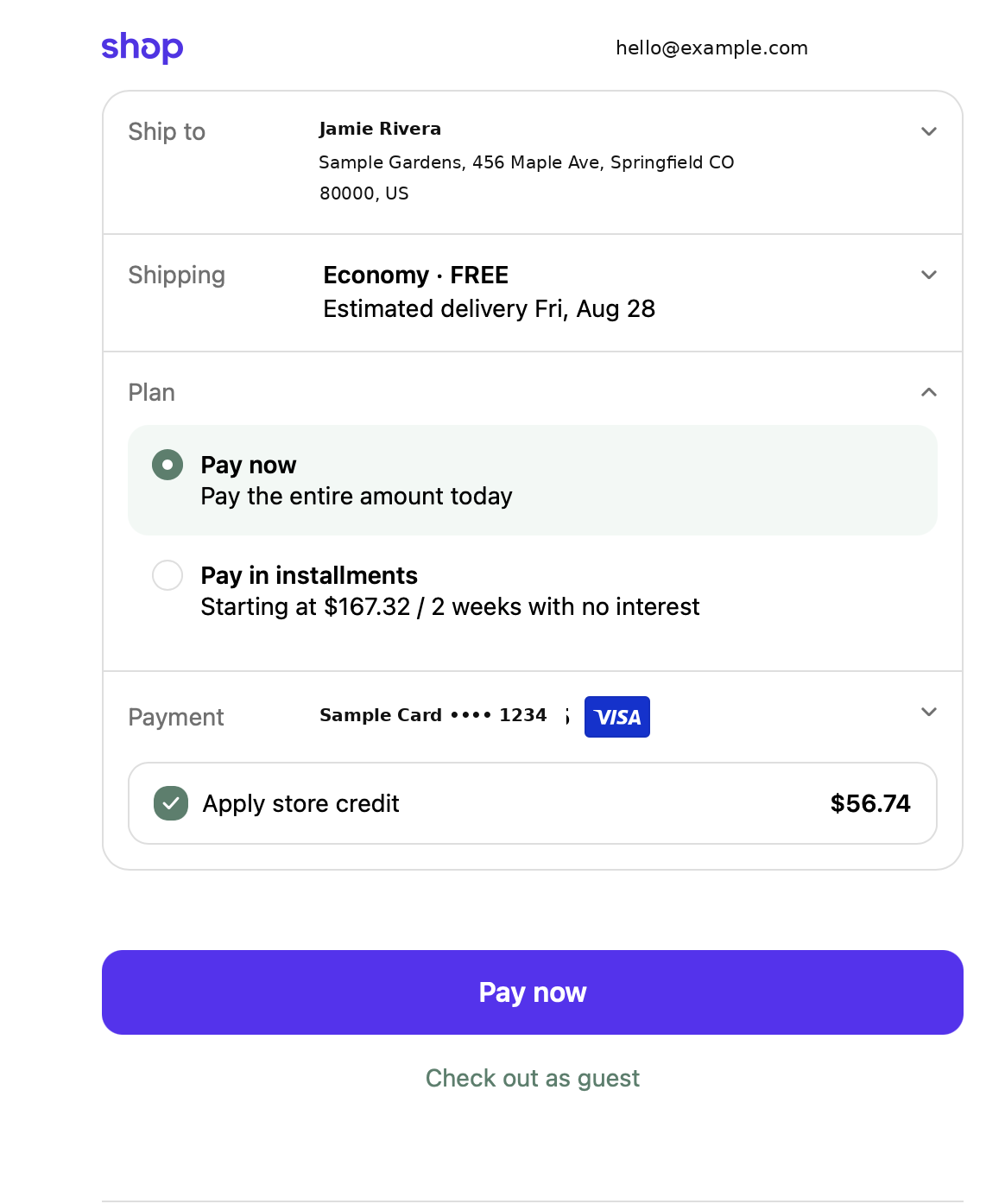
On the checkout page, find the Payment section and check the box labeled "Apply store credit."
- Unchecked — your card is charged the full order total.
- Checked — your available credit is deducted first, and your card is only charged what's left ("Total due").
A few things worth noting
- Installment plans adjust too. If "Pay in installments" is selected, checking "Apply store credit" lowers the per-installment amount.
- Works the same on any device. As long as you're logged into the same account, your balance and the checkout experience are identical on desktop and mobile.